Dotfuscator Community provides a graphical user interface (GUI) for editing Dotfuscator config files. You can use the interface to build the config.
Microsoft Visual Studio includes Dotfuscator Community. For instructions on installing Dotfuscator Community, see the Installation page.
Starting Dotfuscator Community
To begin using the Dotfuscator Community user interface, follow these steps:
- Launch Microsoft Visual Studio.
-
In the Quick Launch (Ctrl+Q) search bar, type
dotfuscator. - In the Quick Launch results shown, under the Menus heading, select Tools → PreEmptive Protection - Dotfuscator Community.
- If you instead see, under the Install heading, PreEmptive Protection - Dotfuscator (Individual Component), then Dotfuscator Community is not installed. Select that option to install Dotfuscator Community.
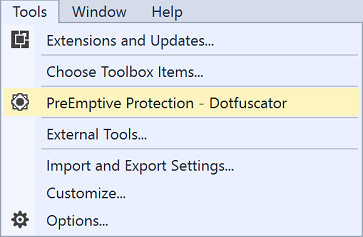
You can also access Dotfuscator Community by opening the Visual Studio Tools menu and selecting PreEmptive Protection - Dotfuscator Community.
The first time you open Dotfuscator Community, it asks you to accept the product's End User License Agreement. It also offers you the opportunity to register Dotfuscator Community with an e-mail address, enabling access to features like the the command line interface. If you choose to skip registration, you can always do it later by following these instructions.
User Interface Overview
When Dotfuscator Community opens, the Start screen displays:
The user interface consists of three panels: the navigation tree (left), work area (right), and Build Output (bottom).
From the Start screen, you may perform several actions. If Dynamic Content is enabled, then you can view the release notes about the latest version of Dotfuscator Community and see the latest news releases from PreEmptive Solutions. The Start screen also provides the option to register Dotfuscator Community.
You can begin setting up a new Dotfuscator config by navigating to the Inputs screen. You can open an existing config by opening the File menu and selecting Open....
Working with Dotfuscator Configs
Dotfuscator Community's user interface configures builds using an XML file called a Dotfuscator config. The config defines the assemblies that Dotfuscator reads, how the application modifies those assemblies, and where the modified assemblies are written out.
The interface operates on one config at a time; use the toolbar icons or the File menu to create a new config (Ctrl+N), open an existing config (Ctrl+O), or save the current config (Ctrl+S).
You can view an opened config's XML file by opening the View menu and selecting Config File.
Getting the Latest Version of Dotfuscator Community
In addition to the versions of Dotfuscator Community shipped with releases of Visual Studio, PreEmptive Solutions also periodically provides updated versions on its website. The Start screen displays a link to the most recent changelog after the Latest version heading.
To get the latest version of Dotfuscator, click here to go to the Dotfuscator Downloads page.
Setting User Preferences
You can change various application settings by opening the Tools menu and selecting User Preferences...
If you wish to use an XML viewer for viewing Dotfuscator XML files that is not your system's default viewer, you may click Browse... in the XML viewer application section and locate the application you wish to use.
In the News and updates section, you may opt to allow Dotfuscator to periodically check for updates. Also, this section is where you can enable Dynamic Content to be displayed in the Start screen.